

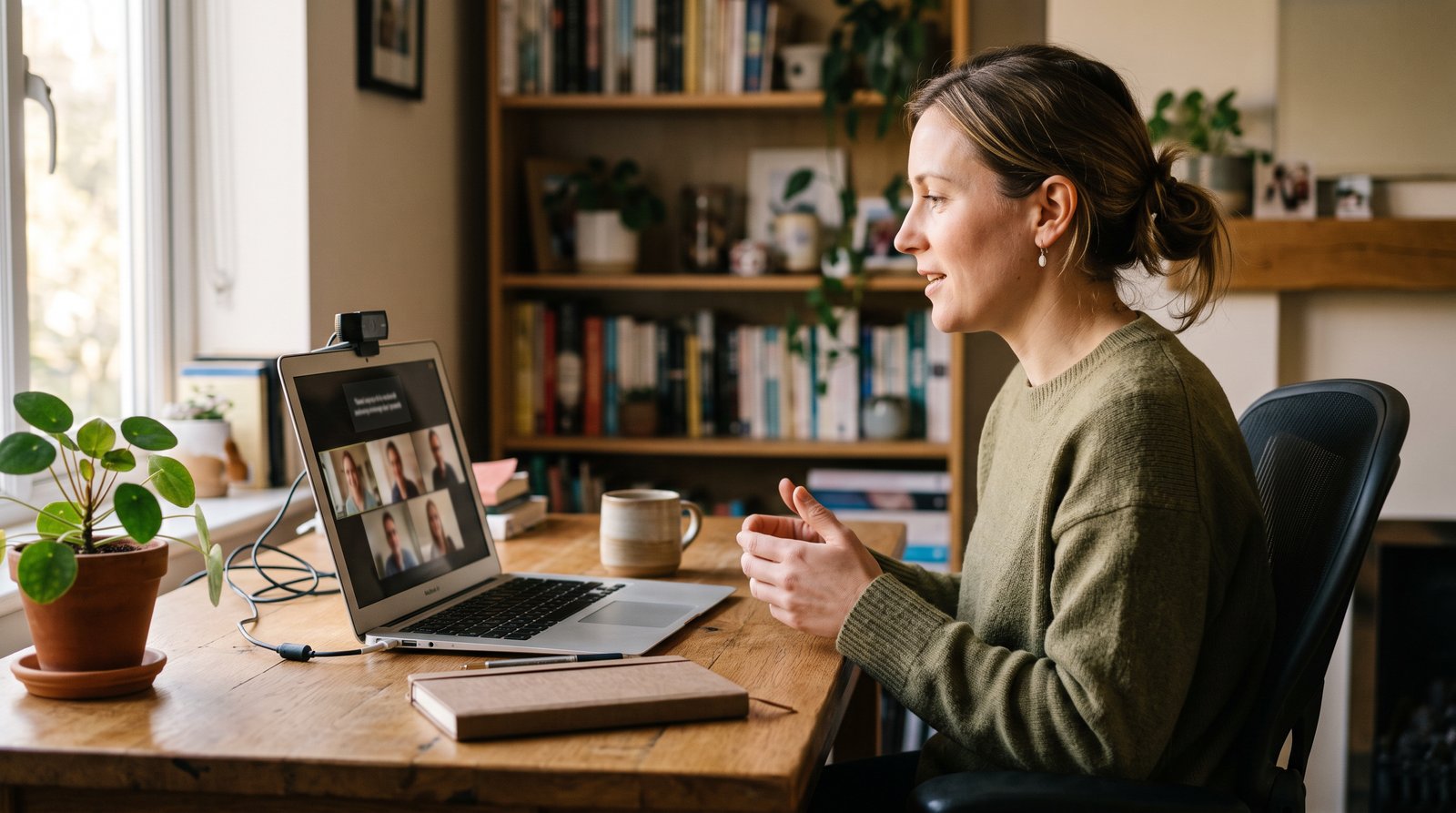
Put your script in a window about a third of the screen wide, docked right under your webcam, so the line you're reading sits as close to the lens as you can get it. Then share a single window, never your whole screen. People on the call see you looking at them, and they never see the script.
Set up the windows on a laptop
On a laptop the webcam sits in the bezel above the screen, so the top edge of the screen is already as close to the lens as text can get.
- Dock the prompter at the top, in the middle. A window about a third of the screen wide, sitting right under the camera. Keep the line you read near the top of that window.
- Put Zoom underneath or to one side. You still want to see faces, but they shouldn't sit between you and the lens.
- Hide your own video. Your face on screen pulls your eyes away from the script and the camera. Zoom's Hide Self View takes it away for you. Everyone else still sees you.
- Keep lines short. A narrow window means your eyes barely move from side to side as you read.
Set up the windows on two monitors
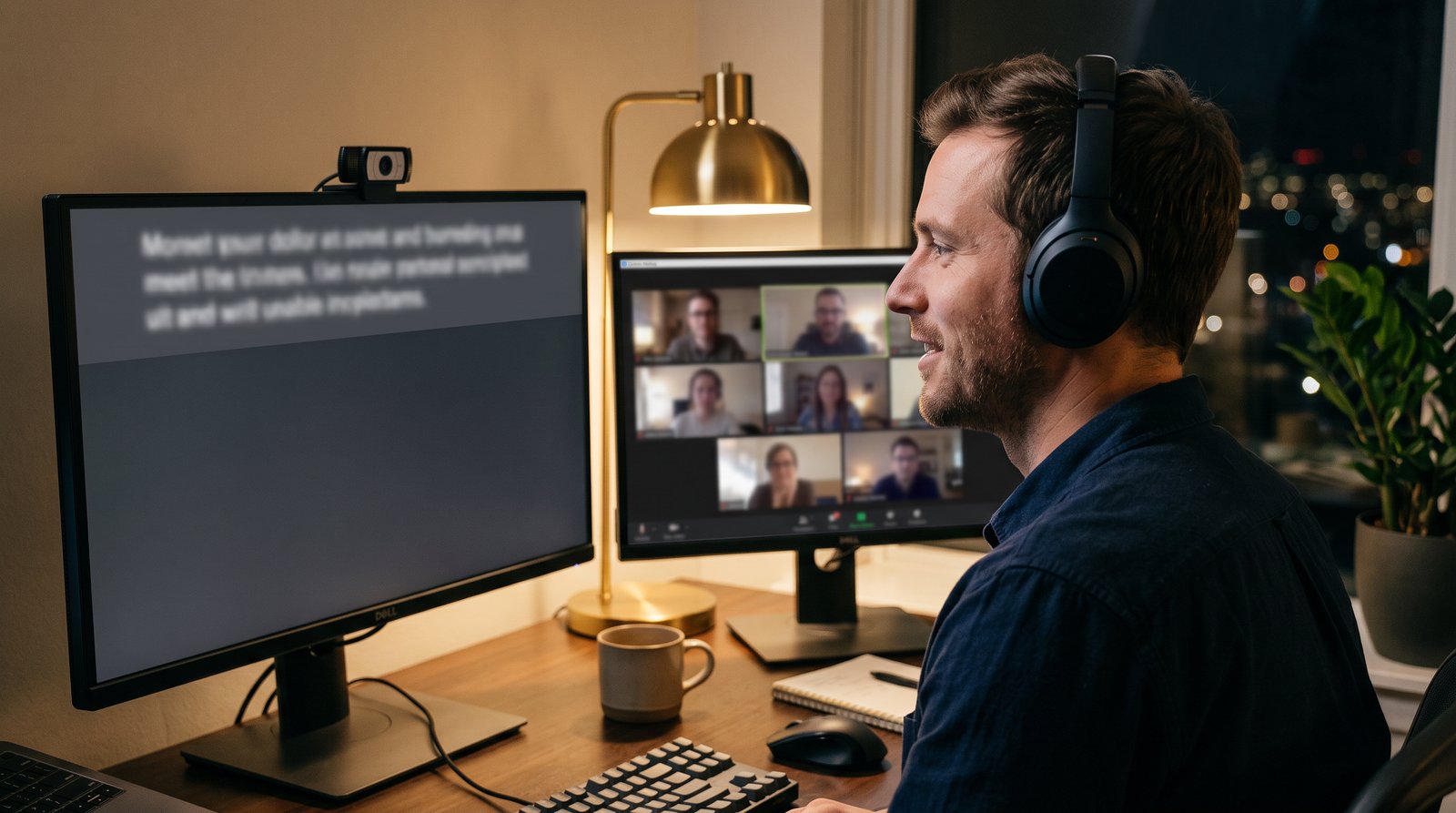
The rule is simple: the script goes on the screen with the camera on it.
Dock the prompter right under the webcam on that monitor, wherever the camera sits. If it's clipped on at one side, the prompter goes on that side too. Then put Zoom on the other screen. If you want to glance at a face now and then, a small Zoom window can sit under the prompter. Zoom also has a dual-monitor setting that spreads its own windows across both screens.
Don't put the prompter on the screen without the camera. Every line you read is then a look away from the lens, and on a wide desk it's often a look sideways.
Will people on the call see your teleprompter?
Not unless you share it. Zoom keeps its own windows out of a screen share by default. It doesn't do that for anything else. So if you share your whole screen, a teleprompter in another app is on everyone's screen too.
- Share a window, not the screen. In Zoom's share picker, choose the window or app you're presenting (your slides, a browser tab) rather than the whole screen.
- On two monitors, share the other screen. If you have to share a whole screen, share the one without the prompter.
- Watch the floating faces. While you share, Zoom shows a small panel of participants. You can drag it or hide it, so move it off the prompter.
The same goes for recordings. A Zoom recording captures your camera and whatever you share. If the prompter isn't in a shared window, it isn't in the recording.
Does Zoom have a built-in teleprompter?
No. As of October 2026, Zoom's meeting app has no script or teleprompter feature of its own. There are third-party apps in the Zoom App Marketplace, or you can run any teleprompter in its own window next to Zoom, as above.
Some computers can also fake the eye contact. Windows Studio Effects on some newer Windows laptops, and NVIDIA Broadcast on NVIDIA graphics cards, have an eye-contact setting that redraws your eyes so they seem to look at the lens. That fixes the gaze, but you still need somewhere to put the words.
Reading live is harder than recording
On a recording you can stop and take it again. On a call you can't. So set yourself up for the read you get first time.
- Slow down. Aim for about 130 words per minute, the slow end of normal speech. That's roughly 650 words for a five-minute update (here's the full table).
- Write the bits you'll say live as notes, not lines. Questions and replies won't follow the script, so don't script them. Keep the opener and the key points word for word.
- Expect to stop. Someone will unmute. A prompter that scrolls on a timer keeps going while you answer, which is the main problem with fixed-scroll teleprompters. A voice-following one waits.
The reading line and pace settings that make you sound less like you're reading are in how to read a teleprompter naturally.
How cuekards handles this
Use Rehearse. Paste your script, tick Follow my voice, then choose Rehearse from the ⋯ menu ("Follow along without recording"). The prompter follows your voice and nothing is recorded. Rehearse only needs your microphone.
It runs next to Zoom. We tested this on 2026-10-17 on a Windows machine, with the Zoom desktop app already holding the webcam. Cuekards opened normally, Rehearse followed the voice, and the call carried on with no camera or mic trouble. Whether two apps can share a webcam depends on your system and its drivers, so try it once before a call that matters.
Put the reading line at the top. The ⋯ menu's Text align item cycles Top, Middle and Bottom. With the window docked under the camera, Top keeps the line you're reading as close to the lens as it gets.
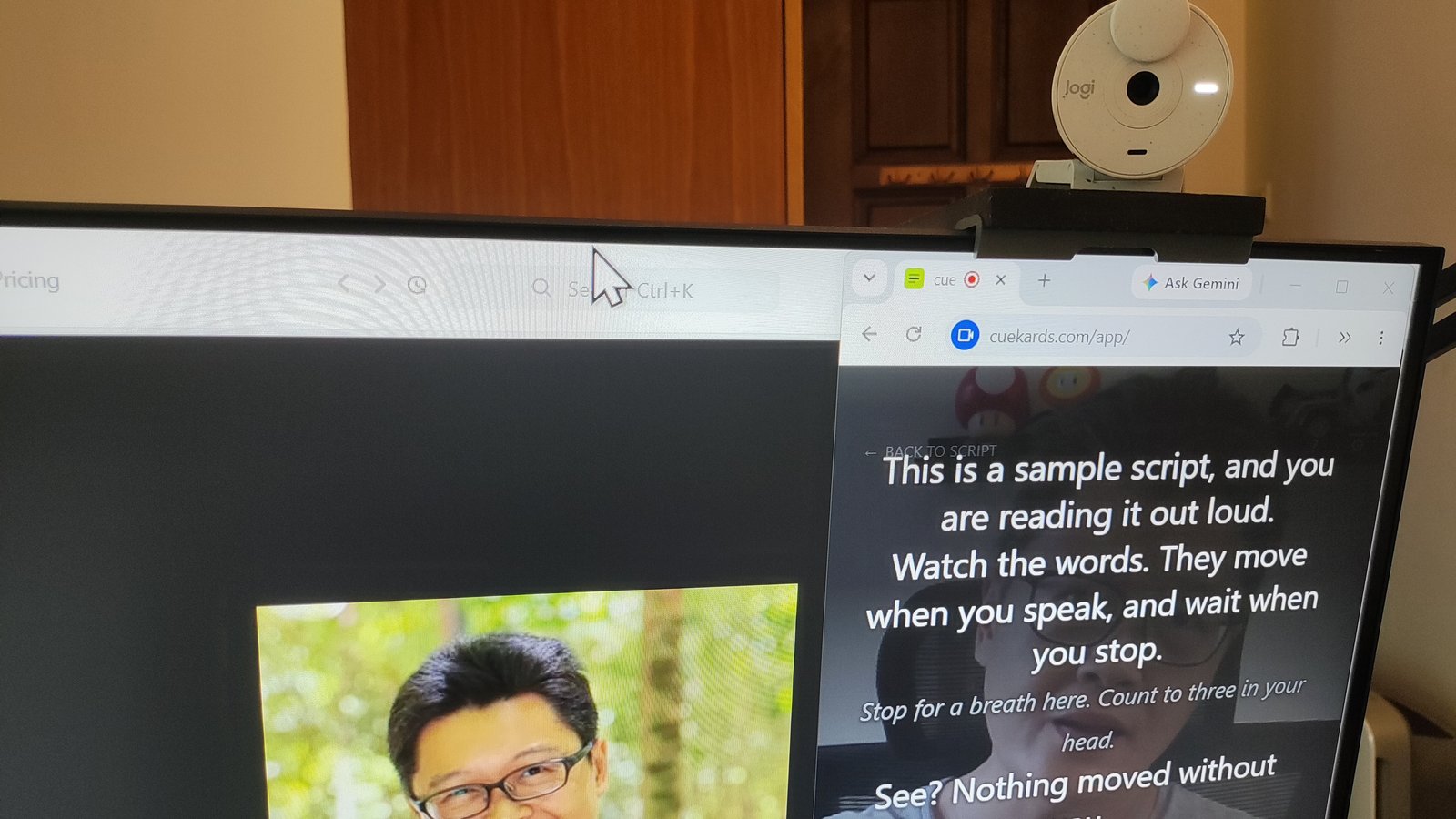
Darken your own face. Your camera fills the prompter's background, mirrored. Settings → Backdrop darkens it, from 0 to 90 (it starts at 55), and the change shows as you move the slider. Turn it up and the script stands out more than you do.
Wear headphones. cuekards hears whatever reaches your microphone, and Zoom coming out of speakers reaches it. Other people's voices mostly just bring up the OFF-SCRIPT label while the prompter holds its place. They'd only move it if someone said a run of words from the next few lines. Headphones take the chance away.
Keep the window visible. Clicking into Zoom is fine, and the prompter keeps following you in a window that isn't focused. But if the window is minimised or behind another tab, the scroll freezes until you bring it back, and a window Zoom covers completely can do the same. Dock it next to Zoom, don't stack them.
Don't shrink it too far. The text re-wraps to fit any width, but the font stays the size you set (the − and = keys change it). The control bar at the bottom covers a lot of a very small window, so about a third of the screen wide is a good minimum.
Keys need the cuekards window focused. If you've just clicked into Zoom, Up and Down won't nudge the script until you click back. Voice commands ("cuekards next" and "cuekards back" move one line) work without focus, but everyone on the call will hear them. They're off by default, in Settings → Voice commands.
The limits. Without Follow my voice, the prompter barely moves in Rehearse. The constant-speed scroll only runs during a recording, so on a call you'd be nudging line by line.
Follow my voice is English only for now. Cuekards runs on desktop, in Chrome, Edge, Brave or another Chromium-based browser (version 120 or newer). There's no pop-out or always-on-top window, and it doesn't work on phones yet.
How the voice-following works, and where it struggles, is in is there a teleprompter that follows your voice? The full setup is on how it works.
Can people see my teleprompter on Zoom?
Only if you share the screen it's on. Zoom hides its own windows from a screen share, but not other apps. Share a single window, or on two monitors the screen without the prompter, and nobody sees it.
Does Zoom have a teleprompter?
No. Zoom's meeting app has no built-in teleprompter as of October 2026. You can run a teleprompter in its own window beside Zoom, or install a third-party app from the Zoom App Marketplace.
How do I read a script on Zoom without looking down?
Put the script in a narrow window right under your webcam, and keep the line you're reading near the top of it, as close to the lens as it can get. Hide your self view so your eyes don't drift to your own face.
Can I use a teleprompter and Zoom at the same time on Windows?
Yes. We tested cuekards next to the Zoom desktop app on Windows on 2026-10-17, with Zoom holding the webcam, and both worked. Webcam sharing depends on your system, so do a quick test call first.
Does a teleprompter show up in a Zoom recording?
No, unless it's in something you share. A Zoom recording captures your camera and your shared content. A prompter in its own window that you don't share stays out of the recording.
Try it before the call that matters. Open cuekards, paste your script, tick Follow my voice, and drag the window into a strip under your webcam. Then start a Zoom meeting on your own, choose Rehearse from the ⋯ menu, and read the first paragraph while you watch your eyes in Zoom's preview.